
What the Eligibility Assessment does
The Eligibility Assessment shows how well your organization matches a specific funding opportunity, before you spend hours on an application. It answers one big question: what is your organization and program missing in order to be eligible. Some of it you can fix, and sometimes its clear you're not a fit. Phew! You saved yourself some wasted effort.
The assessment is a planning tool, not a pass-or-fail test, so a result that shows gaps does not stop you from applying. It shows you what to fix and what a funder is likely to ask about.
Answers about your organization's details, finances, and policies are saved to your Organization Profile. You only answer each of those questions once, and every future assessment reuses them.
Before you start
Gather a few basics first. The assessment is faster and more accurate when your Organization Profile is complete, so fill it in before you check your first opportunity.
- Your Organization Profile. Have your legal name exactly as it appears on IRS records, your EIN, UEI, annual budget, and headquarters address. See How to Complete the Organization Profile (Tab by Tab).
- Your SAM.gov registration. Know whether it is active and when it expires. Federal funders require an active registration that stays valid through the deadline. If you do not have one, see How to Register on SAM.gov and Get Your UEI.
- At least one program. Step 1 asks you to choose the program the grant would fund. Create it under My Programs with a clear summary. See How to Build a Great Program Record.
- Your financial and policy facts. Know whether you had an audit in the last two years, how you track spending by grant, and which written policies you already have. A treasurer, bookkeeper, or accountant can usually answer these in minutes.
Example: Lucia runs a small literacy nonprofit with one program. Before her first check, she spends 20 minutes updating her legal name, UEI, and budget. She discovers her SAM.gov registration expires in March, and she notes that as a risk before the opportunity's deadline.
Walking through the four steps
Open any funding opportunity's details page and select Check Your Eligibility. The assessment opens as a guided wizard on the same page. It has four steps. If you leave to create a program partway through, you return to the wizard with your progress intact.
Step 1: Program Association
Choose the one program this grant would fund. A detailed program summary helps the results describe your work accurately, so review your program before you choose it. If you have no programs yet, the assessment takes you to create one, then brings you back. If your program is incomplete, an Improve your program checklist shows what is missing.
Example: Lucia's grant supports family literacy. She selects Family Reading Circles, which has a summary but no outcome numbers. The checklist flags the gap, so she adds two years of participation data before she continues.
Step 2: Organization Details
This step shows the basics from your profile, such as legal name, registration type, EIN, SAM.gov status, UEI, and annual budget. Confirm what is correct and fill in what is missing. Any change you make here updates your Organization Profile for your whole account, not only this assessment.
Example: Stephanie's profile has no UEI. She enters it in the Eligibility Assessment step, and the assessment updates her SAM.gov and UEI details in her profile right away.
Step 3: Financial Info
This step asks how your organization manages money. Topics include whether your accounting system tracks spending by grant, whether staff time is recorded, whether you have an indirect cost rate (the percentage a funder pays toward overhead such as rent and accounting), whether you can cover a required match, and whether you had an audit in the last two years. Some questions ask about your past experience with federal grants and government partnerships.
Answering No or Not sure does not stop you from moving forward. Those answers simply appear as open items in your results.
Example: Lucia is not sure whether her organization has a negotiated indirect cost rate. She marks Not sure and moves on. Her results show that item as Unresolved, with a suggested step to ask her bookkeeper.
Step 4: Policy Info
This step asks which written policies your organization has. Topics include internal financial controls, purchasing (procurement) rules, conflict-of-interest rules, staff time-and-effort rules, federal data tracking, and demographic data collection. You may also be asked whether you have a monitoring and evaluation plan, which describes how you will measure your program's results.
As in Step 3, a No or Not sure answer does not block you.
Example: Lucia has a conflict-of-interest policy but no written procurement policy. She marks the first as Yes and the second as No. Her results show purchasing rules as Unresolved, and the suggested step takes her to the policy question in her profile.
Reading your results and what to do next
Each requirement in your results is marked either Met or Unresolved. Met means the information you have saved satisfies the requirement. Unresolved means the assessment found a gap or does not yet have enough information to decide. Unresolved is not a final no.
Each Unresolved item includes a suggested next step, with a link to the exact screen where you can fix it. It also includes a short note on where the requirement came from, so you can check it against the funding announcement. Your results update on their own when the information behind them changes.
The results are advisory. They never stop you from starting an application, so use them to decide where to spend your time.
Example: Lucia's results show her SAM.gov registration as Met. They show purchasing rules and the indirect cost rate as Unresolved. She adds a written procurement policy, updates her answer, and the purchasing item changes to Met the next time she does a new eligibility assessment for a different opportuninty.
What to do next
- Confirm that the Met items still reflect your current situation.
- Work on the Unresolved items that the funding announcement requires. Start with the quick fixes, such as a missing UEI, and plan time for slower ones, such as an audit or a new policy.
- Read the official funding announcement, called a NOFO (Notice of Funding Opportunity), for the final rules. The assessment helps you plan, but the announcement is the authority.
- When you are ready, start the application from the same opportunity page.
To check again after you make changes, use the retake option. The wizard opens with your saved answers already filled in, and the new results replace the old ones.
Getting the most from the assessment over time
The assessment is most useful when your information is current. These habits help:
- Finish your setup first. A complete Organization Profile and at least one complete program give you the most accurate results from the start.
- Answer honestly. Your results are only as accurate as your answers, and funders may verify what you report. Mark a question Yes only when it is true today.
- Check more than one opportunity. Your saved answers carry over, so each new check takes less time than the last.
- Update when things change. A new budget, a renewed SAM.gov registration, or a new policy should be reflected in your profile.
Use this table to keep your information current:
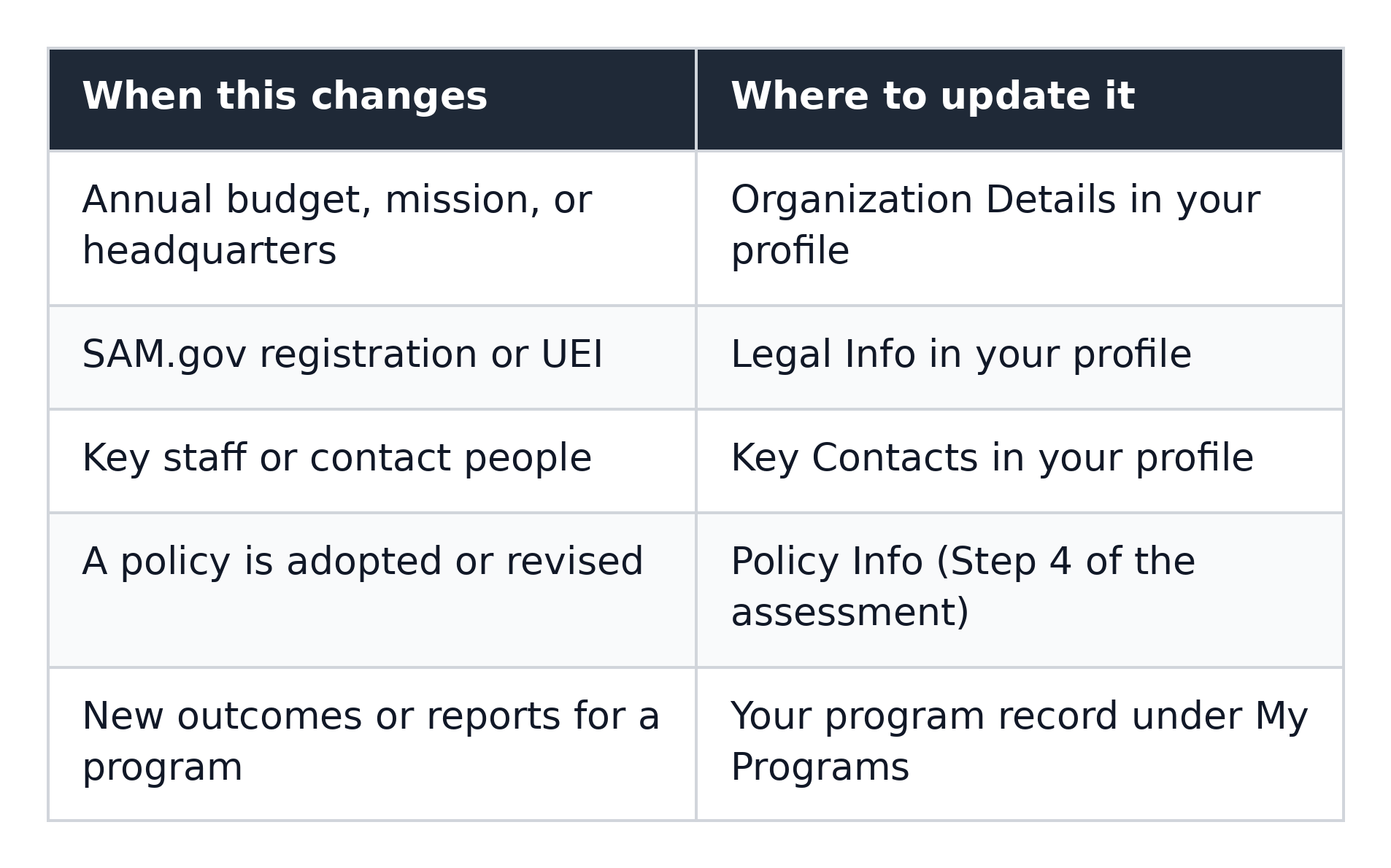
Think of the results as a planning guide, not a final decision. One Unresolved item does not mean you should skip an opportunity. Weigh the gap against what the funder requires and how much time you have before the deadline.
Common questions
Does the assessment decide whether I am eligible? No. It compares the information you have saved with the requirements listed for the opportunity. The funder makes the final eligibility decision.
Do I have to answer every question? You can move on from a step once every question in it has an answer. Not sure counts as an answer, so you are never stuck.
Why does an item show as Unresolved when I know I meet the requirement? The information in your profile is usually blank or out of date. Open the suggested next step for that item, add or correct the information, and the item updates on its own.
Do I need a SAM.gov registration to use the assessment? No. You can use the assessment without one. It will show your registration as Unresolved, and most federal funders require an active registration before they award money.
What if I have no program yet? The assessment takes you to create one under My Programs, then returns you to the wizard with your progress saved.
Can I change an answer after I see my results? Yes. Update the answer in your profile, then use the retake option to see new results. The new results replace the old ones.
Does the assessment replace reading the funding announcement? No. Always read the official NOFO for deadlines, required forms, and final rules. The assessment helps you decide what to prepare, and the announcement tells you what the funder requires.